Check out my new spiritual blog:
http://www.foodforthoughts.co.in


Showing posts with label Internet. Show all posts

Donate Rice by improving your Vocabulary


FreeRice banner

Today, I would like to mention a wonderful site that innovatively helps to carry out an excellent activity, donate rice to the needy people.

Freerice.com, an initiative of the World Food Program, is the site that I am talking about. It is a vocabulary game. In it, you will be given a word, the meaning of which you have to guess out of the 4 given options. For every correct answer, 10 grains of rice are donated. And the more the correct answers given, the tougher the words become. Thus, it is quite an engaging game.

It has recently added many more game types, added to the English meanings game, like simple Arithmetic, chemical symbols, find countries on the map, etc.


Login to multiple IMs without any software

Instant Messaging is an excellent feature of the Internet. Just by connecting to the Internet, people can chat, talk & even see each other, though they may be very far away physically. 


There are several comanies which provide this service to their users. However, with the exception of some services, to be able to chat, you need to install an application on the PC. (Ex. Windows Live Messenger by Live mail) In addition, this software only supports its respective chatting platform. Thus, to use different chatting platforms, one needs to install many different programs.

All these problems can be solved by using Meebo or IMO.im. Both of these are online applications that empower you to use multiple chatting platforms at once right from your web browser, without the need of any software. 

Meebo

Picture of Meebo.com

Imo.im :  This tool has a special feature by which you can link all your accounts with one another, without the need to create an account with the tool.


Picture of IMO.im

Note : There are also many softwares for using multiple chatting platforms simultenously. But, this articles focusses only on the online applications.


Search multiple search engines at once

Everyone generally has a preferred search engine which is used to fulfill all one's search needs. But sometimes, when searching for rare topics, that one search engine may not give the required results. Thus, one then uses some other search engine for the search. This, in turn, gives several duplicate results & it too, may not give the required results.

Thus, when searching for rare topics, it is advisable to search multiple search engines at once. There are many online tools available for this purpose, which are called Meta search engines. These tools search major search engines for your query & then present to you the results together, with the search rankings determined by the average rankings from the concerned search engines. These tools are listed & explained below :


How to reduce your Internet's data transfer

Sometimes, when monitoring your Internet's data transfer, you might notice that you have transferred a lot of data & that your download limit might finish very soon. Thus, you will need to reduce your rate of data transfer. Here are some tips to do so :


Turn off images : 
Images have a much higher size than regular text. Thus, the more the images loaded, the more is the data transferred. Thus, you ahould turn off image loading from your browser's settings.

Turn off other extras : 
Similarly to images, disabling extras like pop-ups, Java, Javascript, etc. too helps in lowering data transfer. Note that some features in some sites may not work with Java / Javascript disabled. So, you can enable them temporarily if the features are important.

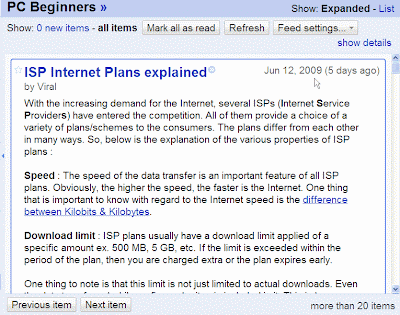
The PC Beginners RSS feed in Google Reader

Take advantage of RSS Feeds : 
The RSS feed of PC Beginners in Google Reader
Many sites (like this one) offer RSS feeds of their content. If the sites that you visit contain RSS feeds, then subscribe to the required feed in a reader & then read the article from the reader. By doing this, only the article will be loaded excluding the other parts of the web-site. This will reduce 
data transfer.

How can one know whether a site contains feeds or not?
Look for the RSS icon RSS logo in the web page. If the page contains RSS feeds, then the RSS logo icon will be usually present in it. You can subscribe to the feed by clicking on the icon.

I will write more points in this article once I find them. 


ISP Internet Plans explained

With the increasing demand for the Internet, several ISPs (Internet Service Providers) have entered the competition. All of them provide a choice of a variety of plans/schemes to the consumers. The plans differ from each other in many ways. So, below is the explanation of the various properties of ISP plans :

Speed : The speed of the data transfer is an important feature of all ISP plans. Obviously, the higher the speed, the faster is the Internet. One thing that is important to know with regard to the Internet speed is the difference between Kilobits & Kilobytes

Download limit : ISP plans usually have a download limit applied of a specific amount ex. 500 MB, 5 GB, etc. If the limit is exceeded within the period of the plan, then you are charged extra or the plan expires early. 

One thing to note is that this limit is not just limited to actual downloads. Even the data transferred while surfing web sites is included in it. This is because, to view a web site, the browser needs to 'download' its images & data temporarily. Similarly, the data transferred in chatting, playing videos, etc. is also included. Thus, it is actually the 'data transfer' limit rather than the 'download' limit.

                 How to reduce data transfer.

Note : These two properties (speed & download limit) are generally available complementarily to each other. For ex. The plan having a higher speed will have a lower download limit & vice versa. So, you will need to make a choice between the two. If you download a lot of data of a big size, then it is advisable to select a plan with a higher download limit. Otherwise, a faster plan would be better.

Night plans : Some ISPs offer night plans. In such plans, you are offered higher speeds & download limits between certain night hours. Ex. 10pm & 8am, etc. Use such plans only if you are absolutely sure to use it in the given time.

That's it! Good luck in selecting an Internet plan perfectly suitable for you.


How to stay safe from your Internet's download limit

The monthly download limit is an important property of ISP plans. Usually, a data transfer (download) limit is applied & if more data is transferred than it, extra proportionate charges are charged. But, manually keeping a check on the amount of data transferred is a tedious task. So, given below is information on tools that will help you to analyze your data transfer easily & effectively  :

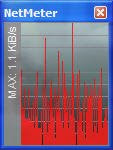
NetMeter monitor
NetMeter : This is one of the best tools available for monitoring data transfer. It carries out its task very effectively. It runs in the
background & monitors the data download & upload. Then, you can easily view the amount of data transferred & other such information from the Reports & Totals option (contained in the the right-click context menu of NetMeter's monitor or its taskbar icon). You can also view the daily, weekly & monthly reports from this option.

NetMeter Analysis
NetMeter --> Totals & Reports option

Should I set NetMeter to run on Start-up?
Yes, if you use an Internet connection that is always on, ie., which does not require you to start an extra application like a dialer. However, if you have a connection that starts with a dialer, you can disable this option & then start NetMeter everytime you connect to the Internet. If you forget things often, then it's recommended to let it run automatically on Start-up.


I will post about more such powerful, free tools for monitoring data transfer once I find them.


How to add an RSS feed in Mozilla Firefox

1. When you visit a site which offers RSS feeds (like PC Beginners), you will see the RSS icon in the right-hand side of the Address bar.

Mozilla Firefox : Address bar with the RSS icon

2. Click on it. If the site offers more than one feed, you will see a list of the RSS feeds offered. Click on the feed that you wish to subscribe to.

3. You will now see a description of the RSS feed.

4. You will also have an option to select the RSS reader of your choice. For basic PC users, Live Bookmarks is the best.

Mozilla Firefox : Select RSS reader
(Click on the image to maximize it)

5. Now, click on the 'Subscribe now' button. Then, you can specify the location where you wish to have the RSS feed. You will have two options, the Bookmarks menu or the Bookmarks toolbar. After selecting the preferred option, click on Add.

Mozilla Firefox : Add Live Bookmark dialog box

(Click on the image to enlarge it)
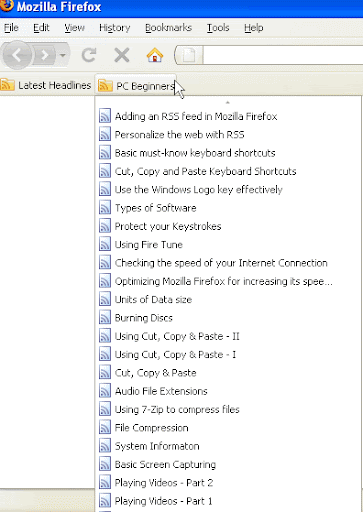
Bookmarks Toolbar

(Click on the image to enlarge it)
Bookmarks Menu


There you have it, the RSS feed has been added! Now, whenever you open Firefox, the RSS will get updated. If you wish to update it manually, you can right-click on the concerned feed & click on 'Reload Live Bookmark'. Enjoy this powerful feature, RSS!


Personalize the web with RSS

RSS IconWhat is RSS?


RSS (Rich Site Syndication) is a very useful little invention of the Web. It simply syndicates the articles on blogs or news sites & presents it to you in a compact way in your web browser itself. You are shown the titles of the latest articles of the respective websites. To view the main content, you can click on the respective title which will direct you to the article in the concerned website.

Therefore, there's no need to visit the concerned web-site to view its latest articles. It is immensely useful if you are the type of user who visits various types of sites daily to view its latest articles. Generally, you can have infinite amount of RSS feeds in your web browser.

Here's an example of an RSS Feed :


(Click on the image to maximize it)


Here, the RSS feed of PC Beginners has been shown. As you can see, the titles of the latest articles can be viewed through RSS. Clicking on a title will direct you to the article on the concerned website.


How to add an RSS feed?

For Mozilla Firefox


Protect your Keystrokes

As you know, the Internet is used for several productive purposes these days. This includes the usage of credit cards for online purchasing, operating bank accounts through the Internet, etc. Most of the sites that need bank or credit-card information use a strong 128-bit (or 256-bit, in some cases) encryption technique which protects the information entered into the site from unauthorized use by outsiders. But, there are still some sites which do not use such a technique. Thus, the information entered in such sites can be exploited. Hackers can misuse such sensitive information to withdraw money from our bank account & credit card or to use your e-mail account.

In addition to this, there are certain spywares which track your keystrokes & send it to unscrupulous websites. Keystrokes means the buttons pressed on the keyboard. Thus, information like passwords entered are included in keystrokes. Thus, such websites can make use of your personal accounts for their purpose. Though most spywares can be removed by use of anti-spyware softwares, some spywares may still remain on the PC.

Thus, it becomes highly essential to protect your keystrokes. This can be done by encrypting your keystrokes at the moment when they are entered. A powerful keystroke encryption extension for Mozilla Firefox is KeyScrambler. It is highly recommended to use it.


How to check the speed of your Internet Connection

Sometimes, you may want to check the speed of your Internet connection.

Here is a list of the websites that you can use to check the speed of your internet connection :

Speed Test
Bandwidth Place
Kify
My Speed
Test my Speed

After the test finishes, you will be given your Internet speed in kilobits (Kb). You will have to convert it into kilobytes (KB) to know the actual speed. You can check this article for the difference between kilobits & kilobytes.

Note :

While running the speed test, do not use the Internet for any other purpose. This is because the websites generally check your Internet speed by simply downloading & uploading a file. The speed of this download/upload is considered as the speed of the Internet connection. As such, if you use the Internet for other purposes like downloading, surfing, etc. while testing the Internet connection, the speed test will get a lower share of your Internet connection, thereby affecting the results of the Internet speed check giving inaccurate results.


Optimizing Mozilla Firefox for increasing its speed & efficiency

So, here's an article on the powerful tool that optimizes web browsers like Internet Explorer & Mozilla Firefox to increase their speed & efficiency. Fire Tune is a very effective tool that can increase your Internet surfing speed considerably. With just a few clicks, you can optimize the web browser to suit your PC.

How does it work?

The mechanism behind this tool is simple. Web Browsers are generally meant for a large audience. As such, they do not have the exact settings to match your particular PC for its optimum performance. So, we need to correct this by optimizing the web browser. Now, optimizing isn't an easy task at all. We have to try out many different settings in different areas in different combinations. Obviously, such a process is very laborious & time-consuming. That's where Fire Tune comes in. Just by mentioning the type of your CPU/RAM and the speed of your Internet connection, it optimizes your web browser using the guidelines given by experts to provide you with a speedy surfing experience.

How to use it?

Read this article.


The difference between Kilobytes & Kilobits

The Internet has changed the way that people perceive computers. So, a lot of Internet Service Providers (ISPs) have emerged in current times. Each of them try to give better bandwidth, faster speed (measured in kilobits per second) & many other features.

One fact that you must be aware of while selecting an Internet plan is that ISPs use a different definition of KB (in KBPS) than most Internet users, download managers, Windows etc. The KB that ISPs use is kilobits while the KB that we refer to is kilobytes & 1 byte = 8 bits. Therefore, to convert kilobits to kilobytes, we have to divide the kilobits by 8 to get the kilobytes, that we use. Many new users tend to think that the kilobits is the same as kilobytes, since they have the same abbreviation, KB. This is quite natural but one must be vigilant about it.


How to associate any download manager with Mozilla Firefox

New : Below is a video explaining the instructions of this article :


You can also watch the high-quality version of the video. Note that it will need a faster internet connection. [800+ kb (kilobits) ps]


When you install a download manager, it will automatically associate with Internet Explorer (IE). So, when you click on a download link in IE, Flashget will open to download the file. To associate any download manager with Mozilla Firefox, install the Flashgot extension which can associate lots of download managers with Firefox, including Flashget, Free Download Manager, Getright, Orbit, etc.

How to install & set up the Flashgot plugin :

1) Visit the Flashgot Extension page.
2) Click on 'Add to Firefox'.
3) Firefox will then ask you to confirm the download of the extension for security reasons. To confirm the download, click on Install now. Firefox will start downloading the extension.
4) After the download finishes, you will be prompted to restart Firefox to install Flashgot. So, restart Firefox.

5) After Firefox opens, go to Tools ---> Add-ons ---> In the Extensions tab, Click on Flashgot ---> Options.

(Firefox) Tools -- Addons
(Click on the image to enlarge it)

(Firefox) Addons -- Flashgot -- Options
(Click on the image to enlarge it)

6) From here, select the download manager which you want to associate, in the 'Download Manager' area, if it is not already selected. Click on OK & close the Add-ons window.

Firefox)Select download manager(Click on the image to enlarge it)

This will integrate the download manager with Firefox. Now, whenever you click on a download link, a download window will pop up from which you can not only open the file with a particular application or download the file with the basic download manager but also download the file via the Flashgot extension ie., your download manager.

Note : This is one of the most visited pages on this blog via Google Search. But, it still has no comments. Thus, I do not know if it really is useful for my visitors. So, if you have read this article & found it helpful/complex, etc, then please comment below. It will help me in improving the blog. Thank you!


Manage your downloads efficiently

Do you download files from the Internet often? Do you use the basic download managers bundled with your browser? Then, what you need is a specialized download manager. The modern download managers provide you with powerful features like pausing/resuming downloads, resuming broken downloads, improving download speed, organizing your downloads & much more.

There are many download managers available on the Internet. I would recommend you to use Flashget. It is one of the most powerful & popular download managers on the Net. After installation, it gets directly associated with Internet Explorer. It means that whenever we click on a download, the download starts in Flashget instead of the default download manager of Internet Explorer. To associate it with Mozilla Firefox too, read this article.


Browse the Internet safely

Use a Firewall : A firewall is a software that forbids unauthorized access to & from your computer through the Internet. It is one of the first security precautions that you should follow. I would recommend you to use ZoneAlarm which is a free, powerful yet simple tool (Download it from here) It is a very popular & effective firewall. It automatically blocks unauthorized access to your computer by outsiders. Also, whenever a software tries to access the Internet, ZoneAlarm asks us whether or to allow it to use the Internet or not.

Use Mozilla Firefox : One of the most important precaution while browsing the net is to use a secure internet browser. Mozilla Firefox is a quick, free & powerful internet browser. It is considered as one of the most secure browsers on the Internet.

Use the NoScript extension with Mozilla Firefox : Install the NoScript extension for Firefox from the link. Whenever a website is visited, it blocks all Flash & Java files (which can contain spyware) from running through Firefox & a 'Scripts currently disabled' message appears. We can also specify certain sites to be allowed Flash & Java content. For this, visit the particular site. Then, click on Options on the right hand side of the 'Scripts currently disabled' message, & then click on Allow 'Website name' .

Use McAfee Site Advisor : McAfee Site Advisor is a very good free software through which we can know whether the site that we are visiting is safe or not. Download it from the given link. Whenever a site is visited, the McAfee Site Advisor tab at the bottom of the screen shows either a red, yellow or green colour representing a dangerous, neutral or safe site respectively. On clicking on the tab, a webpage from the Site Advisor website loads showing the safety details of the site. Thus, it is a very useful tool.


Hello! Welcome to PC Beginners. Here, some useful tips for your PC will be given. This blog is meant for everyone, but it is mainly for those people who have little experience with computers. I am sure that your stay on this site will be a pleasant one!


HomeMobile version | RSS
Contact Me | Terms of Use |  Privacy Policy
Do more with Windows / Internet / Information


Blogger logo Firefox 3 CCleaner - Freeware Windows Optimization Anti Spam