Check out my new spiritual blog:
http://www.foodforthoughts.co.in


Showing posts with label Mozilla Firefox. Show all posts

How to add an RSS feed in Mozilla Firefox

1. When you visit a site which offers RSS feeds (like PC Beginners), you will see the RSS icon in the right-hand side of the Address bar.

Mozilla Firefox : Address bar with the RSS icon

2. Click on it. If the site offers more than one feed, you will see a list of the RSS feeds offered. Click on the feed that you wish to subscribe to.

3. You will now see a description of the RSS feed.

4. You will also have an option to select the RSS reader of your choice. For basic PC users, Live Bookmarks is the best.

Mozilla Firefox : Select RSS reader
(Click on the image to maximize it)

5. Now, click on the 'Subscribe now' button. Then, you can specify the location where you wish to have the RSS feed. You will have two options, the Bookmarks menu or the Bookmarks toolbar. After selecting the preferred option, click on Add.

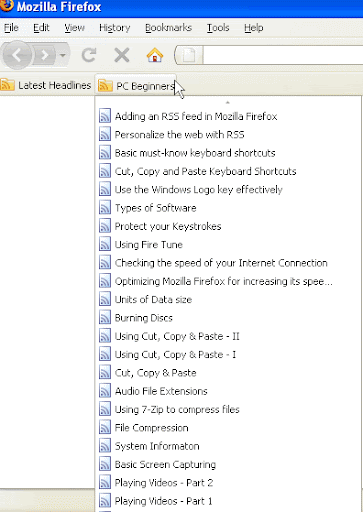
Mozilla Firefox : Add Live Bookmark dialog box

(Click on the image to enlarge it)
Bookmarks Toolbar

(Click on the image to enlarge it)
Bookmarks Menu


There you have it, the RSS feed has been added! Now, whenever you open Firefox, the RSS will get updated. If you wish to update it manually, you can right-click on the concerned feed & click on 'Reload Live Bookmark'. Enjoy this powerful feature, RSS!


Protect your Keystrokes

As you know, the Internet is used for several productive purposes these days. This includes the usage of credit cards for online purchasing, operating bank accounts through the Internet, etc. Most of the sites that need bank or credit-card information use a strong 128-bit (or 256-bit, in some cases) encryption technique which protects the information entered into the site from unauthorized use by outsiders. But, there are still some sites which do not use such a technique. Thus, the information entered in such sites can be exploited. Hackers can misuse such sensitive information to withdraw money from our bank account & credit card or to use your e-mail account.

In addition to this, there are certain spywares which track your keystrokes & send it to unscrupulous websites. Keystrokes means the buttons pressed on the keyboard. Thus, information like passwords entered are included in keystrokes. Thus, such websites can make use of your personal accounts for their purpose. Though most spywares can be removed by use of anti-spyware softwares, some spywares may still remain on the PC.

Thus, it becomes highly essential to protect your keystrokes. This can be done by encrypting your keystrokes at the moment when they are entered. A powerful keystroke encryption extension for Mozilla Firefox is KeyScrambler. It is highly recommended to use it.


Using Fire Tune

1. After downloading & installing the tool, open it.

2. First of all, back up the default settings of Firefox by clicking on the 'Create backup of configuration' button. This will enable us to revert back to the previous settings if the results of optimization are not satisfactory.

3. Now, you will have to select the speed of your PC (CPU & RAM) & the Internet.

To find out the amount of RAM & CPU that you have, click on Start ---> Right click on My Computer ---> Click on Properties. (Or you can press Windows Logo key + Pause) Now, in the 'System' area, you can view the CPU speed in MHz/GHz & RAM in MB/GB.

To check your Internet speed, read this article.

4. Now, select the appropriate combination of the speed of your PC & of your Internet connection, using the table given below :


Fast

Slower

Slow

CPU

1.5 GHz +

-

Less than 1.5 GHz

RAM

512 MB +

-

Less than 512 MB

Internet Connection

300 KB +

100-200 KB

10-25 KB


Note : Here, KB stands for kilobytes.

Now, close Mozilla Firefox if it is open & then click on 'Tune it'. And there you have it, you have just optimized Mozilla Firefox through Fire Tune. Enjoy the speedier performance of Mozilla Firefox!


Optimizing Mozilla Firefox for increasing its speed & efficiency

So, here's an article on the powerful tool that optimizes web browsers like Internet Explorer & Mozilla Firefox to increase their speed & efficiency. Fire Tune is a very effective tool that can increase your Internet surfing speed considerably. With just a few clicks, you can optimize the web browser to suit your PC.

How does it work?

The mechanism behind this tool is simple. Web Browsers are generally meant for a large audience. As such, they do not have the exact settings to match your particular PC for its optimum performance. So, we need to correct this by optimizing the web browser. Now, optimizing isn't an easy task at all. We have to try out many different settings in different areas in different combinations. Obviously, such a process is very laborious & time-consuming. That's where Fire Tune comes in. Just by mentioning the type of your CPU/RAM and the speed of your Internet connection, it optimizes your web browser using the guidelines given by experts to provide you with a speedy surfing experience.

How to use it?

Read this article.


Browse the Internet safely

Use a Firewall : A firewall is a software that forbids unauthorized access to & from your computer through the Internet. It is one of the first security precautions that you should follow. I would recommend you to use ZoneAlarm which is a free, powerful yet simple tool (Download it from here) It is a very popular & effective firewall. It automatically blocks unauthorized access to your computer by outsiders. Also, whenever a software tries to access the Internet, ZoneAlarm asks us whether or to allow it to use the Internet or not.

Use Mozilla Firefox : One of the most important precaution while browsing the net is to use a secure internet browser. Mozilla Firefox is a quick, free & powerful internet browser. It is considered as one of the most secure browsers on the Internet.

Use the NoScript extension with Mozilla Firefox : Install the NoScript extension for Firefox from the link. Whenever a website is visited, it blocks all Flash & Java files (which can contain spyware) from running through Firefox & a 'Scripts currently disabled' message appears. We can also specify certain sites to be allowed Flash & Java content. For this, visit the particular site. Then, click on Options on the right hand side of the 'Scripts currently disabled' message, & then click on Allow 'Website name' .

Use McAfee Site Advisor : McAfee Site Advisor is a very good free software through which we can know whether the site that we are visiting is safe or not. Download it from the given link. Whenever a site is visited, the McAfee Site Advisor tab at the bottom of the screen shows either a red, yellow or green colour representing a dangerous, neutral or safe site respectively. On clicking on the tab, a webpage from the Site Advisor website loads showing the safety details of the site. Thus, it is a very useful tool.


Hello! Welcome to PC Beginners. Here, some useful tips for your PC will be given. This blog is meant for everyone, but it is mainly for those people who have little experience with computers. I am sure that your stay on this site will be a pleasant one!


HomeMobile version | RSS
Contact Me | Terms of Use |  Privacy Policy
Do more with Windows / Internet / Information


Blogger logo Firefox 3 CCleaner - Freeware Windows Optimization Anti Spam